Improving CMD Visuals (Part 3)

Finally, continuing from part 2, last but certainly not least, we need to talk about color.

Color accuracy in ANSI is something that was occasionally discussed around the scene even in the DOS days, but those issues mostly centered around the particulars of an individual’s monitor’s brightness and contrast settings (or perhaps how rich of a layer of dust had amassed on its surface over the years.) That’s to say, the 4-bit (16 color) VGA palette was pretty much a known quantity. In fact, for backwards compatibility reasons both VGA and earlier EGA’s 4-bit palettes were based on the original Color Graphics Adapter (CGA) modified RGBI palette.
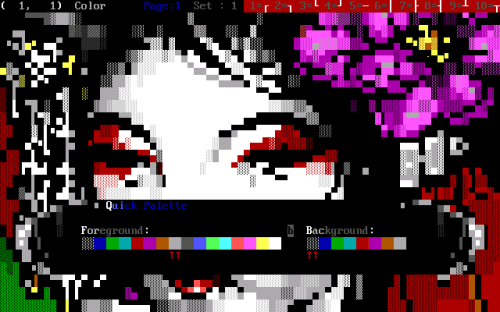
ACIDDraw With the Proper 16 Color Palette

Enter “New Technology“. It took a while for most people in the BBS scene to notice or care since most of us kept running the much more MS-DOS adjacent Windows 9x series of operating systems, but change was in the air. I recall making the switch to using Windows 2000 Professional at work. The first time I did some playing around with an old DOS program, or perhaps it was mTelnet, I was jarred by how utterly jacked up the colors in Windows NT’s new CMD.EXE console looked. Soon after, my friend and sometimes collaborator Grymmjack put out a little release that included a Windows registry file to make the necessary changes to correct them. This file became absolutely mandatory to me and many others as droves of home users finally migrated to the NT series of operating systems with the release of Windows XP in 2001.

So what’s going on with the colors in CMD.EXE? Well, if each of the RGB color values in the 4-bit VGA palette is represented by a value from 0-255, the dark colors are 2/3s the intensity of the bright colors. In other words, 170. Likewise, when an even darker color is desired for mixing colors, 85 is used. Dwelling on this seemingly odd approach a little, I believe the intent may have been that since 0 is considered a color (black) and 255 is most definitely a color (white) only two additional values were needed, with 85 and 170 quartering the scope. Makes sense!

CMD.EXE’s colors, however, seem to be based on the standard 16 color RGB palette. The scope is quartered with the assumption that black is the absence of color. That means we go from 1, to 64, to 128, to 192, to 256 (despite actually being zero-based.) More importantly for our purposes, dark colors use a value of 128 which is 1/2 intensity instead of 2/3s. Whoa! Much more damning, this palette largely does away with the finer mixing of colors with the 1/4 value, meaning the infamous color 6, brown, is now “dark yellow” or “olive” and our bright blue no longer has its beautiful icy hue. Another telltale sign that our palette has been tampered with is that every ANSI artist’s favorite color 8, dark grey, is substantially lighter in this palette. The 4-bit color table in this article demonstrates this well with its first two columns.
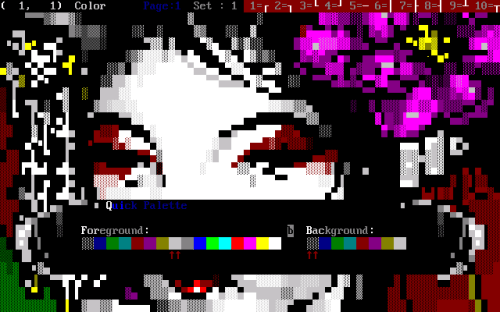
ACIDDraw With the CMD.EXE RGB Color Palette

Having figured all of that out, one thing I haven’t been able to find any information on is why this was done. Was it the “New Technology” team at Microsoft wanting to cast out the CGA RGBI palette like the dusty old relic that it is? Was it perhaps an intentional shift to a standard RGB palette for some particular technical reason? Maybe it was all a mistaken assumption made by a lone Microsoft developer that has continued to be overlooked all these years? I don’t know. One thing I do know is that it sucks for us ANSI enthusiasts.

Now, with Windows 10 Microsoft has thoroughly tossed out all of the old standards, coming up with a new color scheme called “Campbell” seemingly based on, well, absolutely nothing. This is, instead, apparently an intentional effort to make the colors have higher contrast on modern LCD monitors. Curiously, the palette itself seems to have much less contrast when viewed as a whole. Whatever. For ANSI, these new colors are a total disaster – we have a weirdly orange reds, an almost tan brown, barely distinguishable dark and bright purples. I just… can’t.
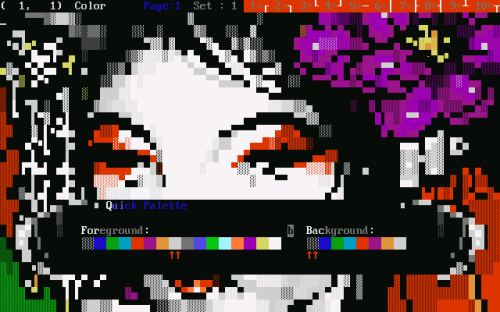
ACIDDraw With the Windows 10 Color Palette

So, how do we fix this? Well, if you’re using any version of Windows prior to Windows 10 version 1709 AKA “Fall Creators Update” then the very same registry hack that I mentioned we used to use almost 20 years ago will still work today. Here is a quick bonus archive with my take on all three of the described color schemes in separate registry files for those wanting to experiment. Unfortunately with the newer color scheme changes Microsoft seems to have also changed how CMD.EXE stores its color settings, though you could always try to compile the new “Colortool” and build your own equivalents using the classic RGBI color values. More likely, you’ll just want to go to the properties of your console window, click the “Color” tab, click each individual color, and customize the RGB values there to match those same RGBI colors. While you’re in there, you might as well change your cursor size to “Small” under the “Options” tab and don’t forget to fix your font too.

Here’s my terrible command prompt in Windows 10 using the old CMD.EXE colors (since I upgraded to version 1709 the new color scheme wasn’t forced upon me.) Did I mention that Windows 10’s CMD.EXE now parses ANSI escape codes natively? I just used the “type” command to display this dope Grymmjack ANSI!
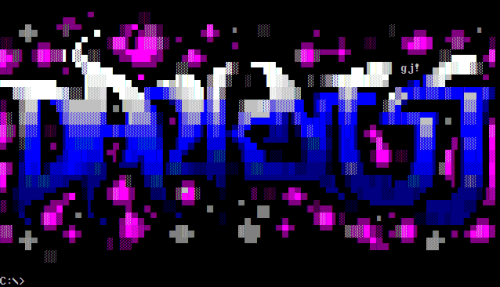
Windows 10 CMD.EXE Command Prompt ANSI with RGB Color Palette

Here it is again after fixing the RGB values of the 16 colors, setting them back to the proper RGBI palette. Notice how the dark blue and purple are a little brighter? How bright blue is, well, a totally different color? How the shading seems to be blended a little better, and how the cyan highlights on the font look more appropriate? Most importantly, dark grey has been restored to glory?
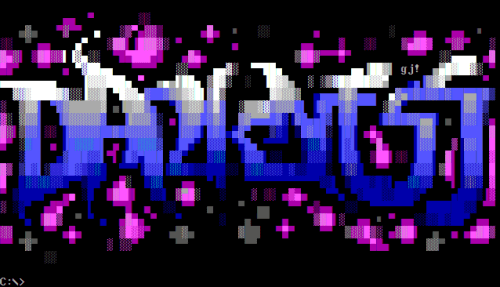
Windows 10 CMD.EXE Command Prompt ANSI with Correct Color Palette

Ahhh, much better!


1. fil-koku.ans by Filth from Blocktronics: Awaken (2003)
2. gj-drk.ans by Grymmjack from Used #4 (2000)
Improving CMD Visuals (Part 2)

Now let’s go into a bit more detail about proportion and aspect ratio. An aspect ratio is, at least when we’re talking about displays, the ratio of the width to the height of an image. In Part 1 of this series I talked about how the default CMD.EXE font was totally the wrong size. The end result of this being that the storage aspect ratio was also totally wrong, resulting in proportions being completely different than originally intended by the artist.

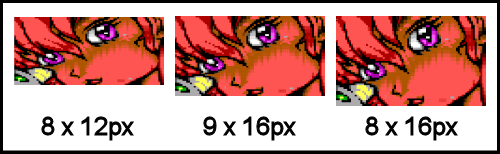
Simply put, the 8 x 12px font has the same width as the 8 x 16px, which has to mean its proportions must be different. Let’s take a look at the numbers for a better understanding of why that is. The 8 x 16px font, the width being half the size of the height, has a .5:1 (or 1:2) aspect ratio. The default Windows CMD.EXE 8 x 12px font has an aspect ratio of ~.67:1. Quite different. To have the same proportions, it’d need to be 6 x 12px, which would give it the same .5:1 aspect ratio. For the record, the original 9 x 16px font has an aspect ratio of ~.56:1, which means its actually somewhere in between. If you compare the three images of ACIDDraw I used as example in Part 1, you’ll see they’re all the same width, but with very different heights and, therefore, proportions. Here’s a more direct comparison for the visually oriented, keeping in mind the 9px wide font has been resized to have the same width as the other two:

Side-by-Side Comparison of 3 ANSIs With 3 Different Font Sizes

So which one of them is accurate? Well, talking strictly from an artistic standpoint, whichever one the artist drew it with and/or intended for it to be viewed with. These days, that probably means 8 x 16 but it could easily be any of those. In this case, while its been awhile, I’m pretty sure when I drew that outline I was using the 8 x 16 font. Thanks to more and more modern ANSI editing and viewing applications saving this information in SAUCE meta data and referencing it when rendering, a lot of times it’ll actually be displayed as intended, but that really only goes for much newer art displayed by much newer applications, unfortunately.

Now it’s time to throw a massive wrench into the works. You see, when talking less modern applications, well, none of these are accurate.

The VGA graphics mode that most IBM compatible PCs were using with the now discussed-to-death 9 x 16px font for text mode was running at 720 × 400 screen resolution. Interestingly enough, unlike most of the other screen resolutions we’re used to dealing with these days, 720 x 400 is not a 16:10 storage aspect ratio, but rather 9:5. Weird. That doesn’t really matter though – most EGA and VGA games in MS-DOS were running at 320 x 200 which was indeed a 16:10 storage aspect ratio and they’re still affected by the same issue I’m about to describe. Some of you are probably already honing in on the issue based on the subtext here. That is, none of us had 16:10 widescreen monitors back in the day, now did we? No, we had 4:3 display aspect ratio CRT monitors.

As it turns out, there is a difference between our storage aspect ratio and display aspect ratio, so our pixel aspect ratio isn’t 1:1. Due to their analog, raster scan nature, our old CRT monitors would actually stretch square pixels to be quite a bit taller than they are wide. The stretch from 16:10 to 4:3 is fairly dramatic, as it’ll take little imagination for most of us to recognize since it hasn’t been that long since we moved from 4:3 or 5:4 monitors and TVs to 16:9 and 16:10 widescreen monitors and TVs. What that means is that in addition to needing to use a font that is yet taller than it is wide than the one Windows wants us to use by default, we still need to stretch the entire image vertically by something like 35% to make it look how it would have looked when we were drawing it using something like ACIDDraw or TheDraw back in the day. Here’s a nice video discussing this phenomena as it applies to DOS games, with loads of examples.

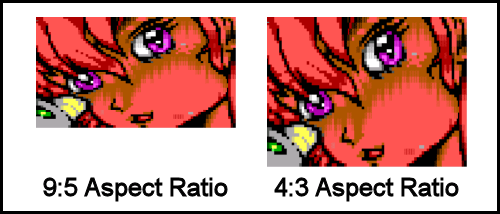
Back in the world of text mode, here’s an example of taking the above image with the correct 9 x 16px font in its native 9:5 storage aspect ratio and stretching it to a 4:3 display aspect ratio in an image editor to simulate how it would look on a CRT:

Side-by-Side Comparison of an ANSI at Native Aspect Ratio vs a Stretched One

That’s a big difference! I drew that outline without using the stretched aspect ratio so that’s not necessarily “correct” in this case, but the vast majority of ANSI art before the mid 2000s would have probably been drawn in 4:3.

Unfortunately fixing this is way more complicated than changing a font around, and is best accomplished with some form of video manipulation. A lot of retro game emulators, for instance, include some sort of a way to approximate this stretched out display, but unfortunately very few text mode programs I’ve encountered seem to be concerned or even aware that this is a thing. PabloDraw and its short-lived competitor TundraDraw, include an option to emulate this video stretching, meaning ANSI and ASCII fans and artists can still view and draw today using this display aspect ratio if they choose. Sadly, none of the most popular ANSI-BBS compatible telnet and SSH terminals out there that I’m aware of (such as SyncTERM or NetRunner) support any sort of 4:3 aspect ratio emulation. As for CMD.EXE itself? Nope!

So, short of dragging your old CRT monitor out of your attic and plugging it in, then forcing CMD.EXE and the rest of your console applications to run full screen (which doesn’t even appear to work in Windows 10’s new CMD.EXE by the way) there aren’t many workarounds to this issue. DOSBox is a good way of running old DOS programs with an emulated 4:3 display, though you’ll need to tweak the default settings to achieve this. Even still, since DOSBox is developed primarily with running old games in mind, not all old BBS scene related programs will run correctly under it. Perhaps setting it up to dial out to telnet boards would be a good subject for a future article, though! For CMD.EXE and 32 or 64 bit console applications, it seems that sticking with that old trusty 8 x 16px font may be a decent compromise, as it produces a display aspect ratio just a little bit closer to the full 4:3 height than the 9 x 16px font does.

Thankfully, at least viewing standalone ANSI with the correct fonts and aspect ratios is much easier. Besides being supported in PabloDraw, as mentioned, virtually all of the online text mode art viewing sites (such as 16colo.rs) are using the brilliant Ansilove utility to do their image conversion. Ansilove supports both the 9px wide font and, as of this year, the ability to stretch the display aspect ratio as well, meaning modern efforts to display and archive text mode artwork will have a leg up on accuracy.

Well, I didn’t say it was all good news. On to something a little easier to tackle


1. ViiX2 – XXX – We Hijacked!.ans by Jack Phlash, Enzo, and Avenging Angel from Vii-X2 #2 (2005)

Improving CMD Visuals (Part 1)

During a recent chat, a prominent ANSI artist mentioned his concerns about the way his ANSI was being displayed in a screenshot I sent him. This lead me down a bit of a rabbit hole of thinking of how people use the CMD.EXE console, first introduced in Windows NT and still with us today, in a bit of mutated form, in Windows 10. To make one exceedingly broad, overarching statement here, it’s important to start by acknowledging that CMD.EXE is absolutely not MS-DOS, so these tweaks are just the tip of the iceberg, especially getting beyond basic aesthetics. Still for those of us who occasionally use the “command prompt” in Windows to run 32 bit console applications (or if you’re using 32 bit Windows, even old 16 bit DOS programs) things just aren’t quite right.

First there’s the font. ANSI artists reading this are probably passingly familiar with the disparity between using a normal 8px wide font vs the old 9px wide VGA font since it’s, if nothing else, right there in the menu of our most popular modern ANSI editing tool, PabloDraw. Even back in the DOS days the 9px wide font was a bizarre thing artists had to work around, or sometimes take advantage of to interesting effect. Suffice to say, most of us have gotten used to drawing and viewing ANSI in the 8px font these days and may even prefer it. So what then, do we make of the bizarrely squashed font we encounter when running CMD.EXE? It can be kind of jarring, that’s for sure. Probably a lot of us would assume that it has something to do with the difference in aspect ratios, which is partially correct, but not for the reasons you might assume. I’ll talk about more in Part 2. The biggest problem is actually that Microsoft defaulted the CMD.EXE font in all versions of Windows up until Windows 10 to a 12px tall font. The original VGA text mode font most of us PC types are familiar with is 16px tall. Yes, that is a big difference!

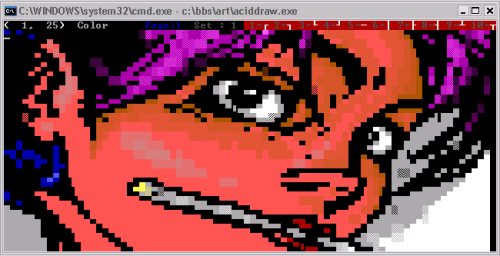
Allow me to demonstrate via Windows XP’s CMD.EXE, looking at an ANSI loaded up in ACIDDraw:

ACIDDraw With a 8 x 12px Font

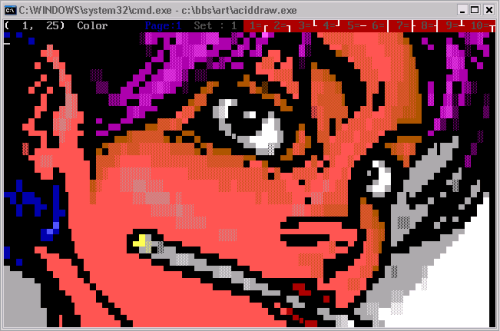
This looks okay, pretty good even, at a glance. If you drew that picture, however? Especially if you might have struggled to get the proportions just right in the first place? It’s terribly, freakishly squashed! Just compare it with how it looks with a 8 x 16px font:

ACIDDraw With a 8 x 16px Font

You’re on board, aren’t you? So let’s fix this! When you go to the properties of a running CMD.EXE you’ll see a handy tab labeled “Font”. Therein is a list of TrueType fonts which, when clicked, allows you to pick a font size. There’s also a “Raster Fonts” section which when clicked will show you a number of bitmap font options listed by pixel sizes, including the default we’re currently using, 8 x 12. So, easy to solve right? We just change to the size we want, or maybe pick a better TrueType font and… err. I’m sure almost everyone reading this had made it this far on their own at some point in the distant past, only to discover that there isn’t any better looking raster font and the TrueType font list is missing almost all of the fonts you have installed on your system. How helpful. It’s at this point most of us would give up and resign to a life of living with these new, weird proportions.

It doesn’t have to be so! I won’t re-write the book as how to add “custom fonts” to your CMD console since it’s well documented all over the Internet. Google if you need more help than I give you here. In short, there are two basic ways to do this:

  1. Install one or more 8 x 16 raster fonts. These will automatically appear in the CMD.EXE raster font list (only listed by their pixel size) after being re-launched.
  2. Install one or more properly proportioned TrueType fonts. Unfortunately this method also involves having to go to “HKEY_LOCAL_MACHINE\SOFTWARE\Microsoft\Windows NT\CurrentVersion\Console\TrueTypeFont” in your registry and adding a new string value representing the name of the new font. Still, after that one tiny change, it should appear in your CMD.EXE’s font list after relaunching it.

Using a raster font is easier, but the advantage of using a TrueType font is that you can then use the “font size” to scale the font (well, the whole window) to a larger size.

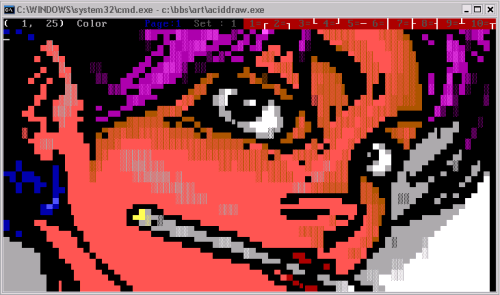
Some of the more astute readers might have noticed that the proportions still wouldn’t be exactly correct, since 8 x 16 has a slightly different aspect ratio than 9 x 16. Again, Part 2 is going to be all about aspect ratios. Still, the short response to that concern is that you can actually install a 9 x 16px font the same way we installed the 8 x 16px font above if you really want to re-live the old days or are just a stickler for accuracy.

ACIDDraw With a 9 x 16px Font

Of course, there’s the matter of which fonts to actually use. There are a number of good monospaced fonts that look pretty appropriate (or at least, pretty cool) and some even include the high ASCII characters needed for displaying ANSI art fairly accurately. Personally, I’m using the ones included in The Ultimate Oldschool PC Font Pack. This includes fonts from a number of old PC BIOSes lovingly converted to CP437 raster and TrueType fonts. The ones you probably want to install being “IBM VGA8” and “IBM VGA9”. Check out the awesome documentation for the font pack over here for a lot more technical details on the included fonts and some of the topics discussed here.

Definitely an improvement, right? Right. So now your text mode programs all have the right font and the right proportions! Err, not so fast!


1. tk-disto.ans by The Knight and Filth from Fuel #12 (1997)